NOTE: available from AutomationDock version 4.0.0.6
When developing a process, you may need to test only specific parts of the process without the run executing all the steps in it. For this reason, you can use the Breakpoints feature.
Once you tick the Test Mode option in the AutomationDock main panel, the Breakpoints menu will appear:
Now you can select the row where you want the Breakpoint to be added – upon process run, the steps following the selected row will not be executed (including the selected row):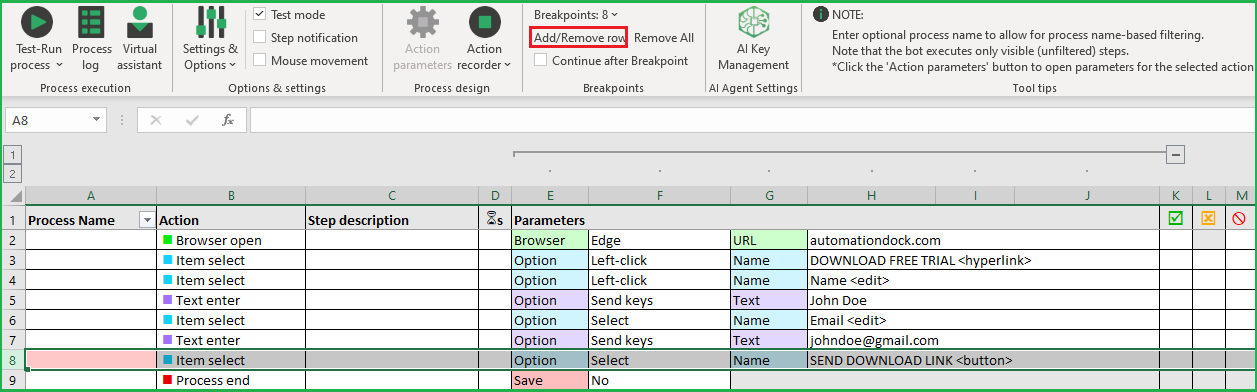
You can select multiple rows and add Breakpoints to them – the number rows will appear on the menu. The process run will stop before reaching the first selected Breakpoint.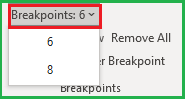
To remove a specific Breakpoint, select the row in the automation sheet and click Add/Remove row.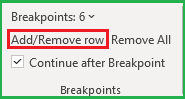
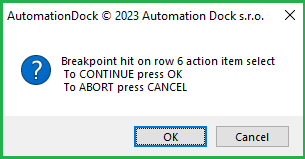
You can also tick the option 'Continue after breakpoint'. When running the process and reaching the row with the Breakpoint, AutomationDock will prompt open a window where you can choose whether to continue or abort the run.
To remove all Breakpoints, simply click the option from the main panel: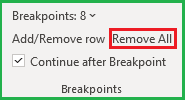
Was this article helpful?
That’s Great!
Thank you for your feedback
Sorry! We couldn't be helpful
Thank you for your feedback
Feedback sent
We appreciate your effort and will try to fix the article