Excel function

This action allows the user to create functions that combine existing Excel functions with AutomationDock variables and additional features.
Automation sheet parameters:
- Function – function definition
- Result (output field) – displays the function result. The value is stored in the [result] variable
Action parameters window:
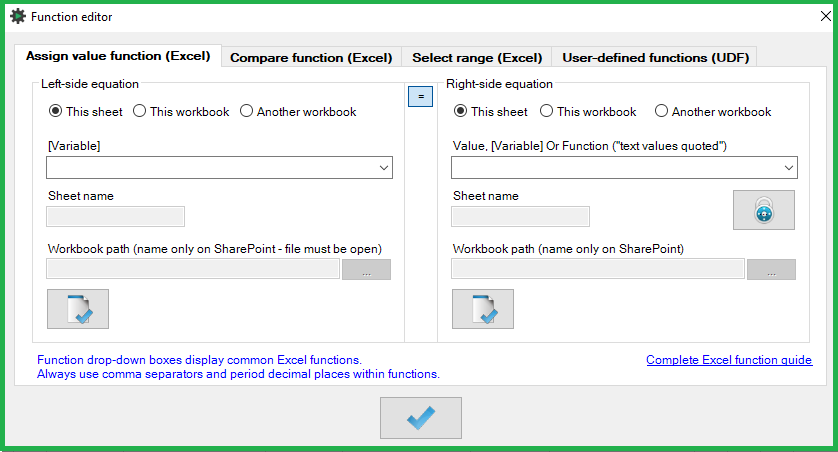
The window is divided into four tabs\function types:
- Assign a value function (Excel)
Assigns a value from the right-hand equation to the left-hand equation using the equals “=” symbol. Examples of assign functions:- [x]=3.14
- [x]=[y]+7
- [s]=”Test message”
- [f]=TRUE
- [x]=length(“[s]”)
- sheet1'!A1=500
- Compare function (Excel)
Compares the left-hand equation with the right-hand equation using compare symbols (<, <=, >, >=, <>). To compare two values using the equals symbol, it is necessary to use a two-character symbol “?=” to differentiate between assignment and comparison! Examples of compare functions:- 5>6
- [x]?=3.14
- [y]?=TRUE
- [a]<>len(“[s]”)
- sheet1'!A1?= sheet2'!B[row]
- Select Range (Excel)
Allows the selection of an excel range in a specific sheet and workbook. When working with a Sharepoint-based workbook, enter only the file name. Examples of range functions:- sheet1'!a1:d12
- sheet1'!a1:[col][row]
- User-defined functions (UDF)
Allows execution of a custom user-defined function in VBO script. To set it up, go to the Settings & Options window in the AutomationDock main panel, click the Plus icon and fill in the following settings:- Function name: name your function
- Function description: write a description of what the function does, what parameters it needs and what the function will return as output
- Function definition: the actual function definition in VBO script
- Public function: you can tick this box to allow other users to use this function
You can test the function using the File and tick icon.
You can also import an existing function using the Folder and plus icon.
Once done, click the Save icon.
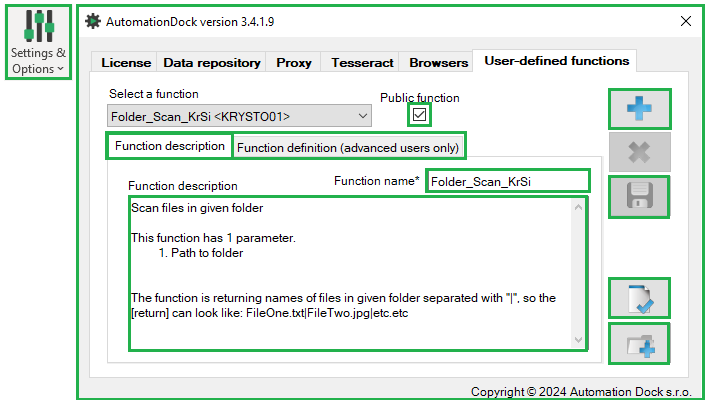
When a UDF (user-defined function) has been set up, select the function in the User-defined functions (UDF) tab in the Excel function Action parameters menu and fill in necessary Parameter(s). Once done, click OK (tick icon).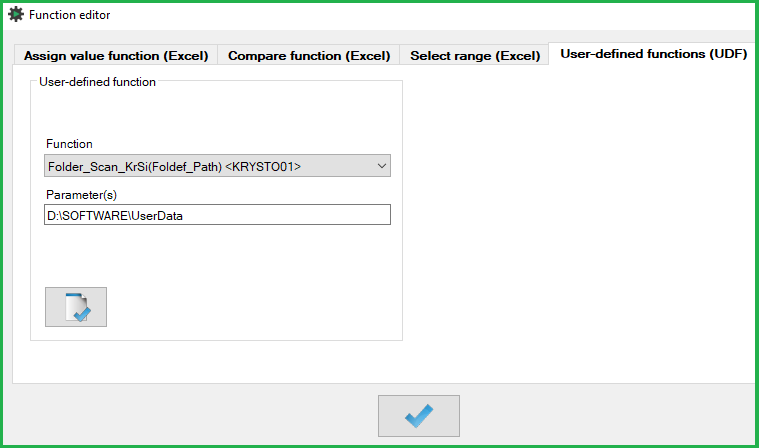
User interface features common to the assign and compare tabs (tab 1 and 2):
- Use the radio buttons for both left & right equations to select if the function is a value\variable, a cell in the current workbook or a cell in another workbook. Based on this selection, sheet and workbook textboxes become available.
- If applicable, the value drop-down field displays a list of common Excel functions that can be used in AutomationDock functions.
- Validate the functions using the validate buttons (File and tick icon).
- When working with a Sharepoint-based workbook, enter only the file name.
- A complete list of Excel functions can be found here: Complete list of Excel functions
Addition Excel function tips and features:
- In some cases, Excel automatically adds a single quote in the function parameter cell which could cause the function to fail. The single quote is visible only when the cell is in edit mode (double-clicked). To remove the single quote, copy\paste an empty cell into the parameter cell.
Variables
A variable is a named value that can be referred to in other functions and action-steps. Variables are enclosed in [brackets]. In the famous Pythagoras' theorem “a2 + b2 = c2”, abc are all variabes that hold a specific value.

The variables can be set only within Excel function action-steps, but used in most of the other action-step parameters. This is demonstrated in the next example where a variable [value] is populated with text from a spreadsheet and the text in this variable is then entered into the selected application using the “Text enter” action:

When using variables with text values in a function, it is necessary to use double quotes around the variable name. This is demonstrated in the 3rd step of the below example where we use variables to store and combine names (see the values in the blue result field).
Was this article helpful?
That’s Great!
Thank you for your feedback
Sorry! We couldn't be helpful
Thank you for your feedback
Feedback sent
We appreciate your effort and will try to fix the article