Item select

NOTE: Requires a parent Window to be selected
This action selects an item (button, text box, link, etc.) in the selected window. The selected item can be clicked or selected for interaction by the following actions:
- Text enter, Value retrieve, Mouse click
- Options:
- Select
- Left-click
- Left-click+
- Right-click
- Double-click
NOTE: Difference between “Left-click” and “Left-click+” is that the 1st option is a virtual click (faster) and the second is a physical click. In case the 1st option is not supported in the selected application, use the 2nd option
- Name: name and type of the item. Use the * wild symbol to specify an item by partial name. For example “A* <button>” selects the first button that has a name that starts with an “A”
Action parameters window:
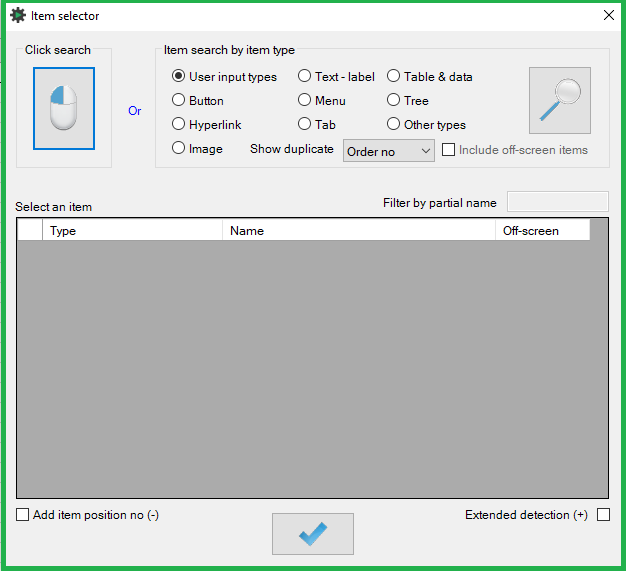
- Click search method
This method allows direct object selection using a mouse.
To start, click the search button and while holding the CTRL key, click the item to be automated. Items successfully selected are highlighted in a red rectangle.
Selection process instructions are displayed in the notification popup. Wait for a sound notification after each key press and mouse click before proceeding to the next step. The item selection mode will time out after 10 seconds if no action is taken.
The search result table displays the selected item and if applicable, the item’s parent and child.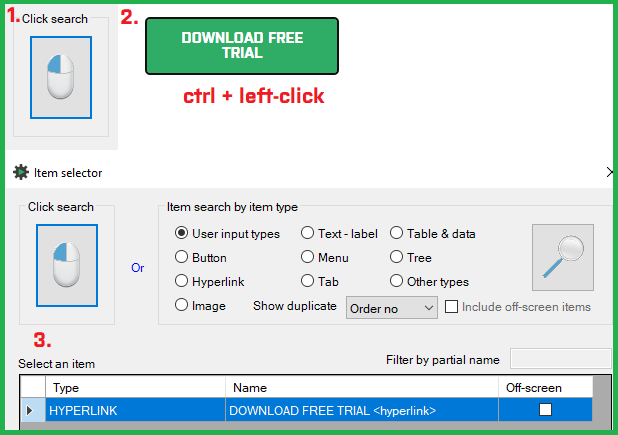
- Item search by item type method
This method displays all items in the selected window for a specific item type. Select the desired object type from the list of radio buttons (user input types include text input boxes, list boxes and drop-down boxes) and click the search button. By default, only the on-screen objects are listed. To show all objects including those off-screen, check off the “Include off-screen elements” checkbox.
The search results table displays the name of an object and the <object type> next to the name. If an object is off-screen (using the off-screen search option), the object appears in gray text. Use the “Filter by partial name” text box to filter results for specific objects.Item selection optimization:
Name optimization: To ensure more stable item identification, you can modify the item name for the minimal number of characters required to get a unique match:
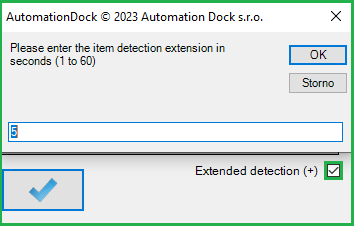
e.g. "About application ver.5.2.0.1.9" <button> –> "About application*" <button>Extended detection: To have the system wait for up to 60 seconds for the selected item to become available, tick the “Extended detection” option. If the item is found faster than the time specified, the process continues the moment the item is found.
Item order: In case the same object name and type appear more than once, you can refer to the correct one by specifying the item's order position in which it appears in the application or on the website.
e.g.: "<button-1>”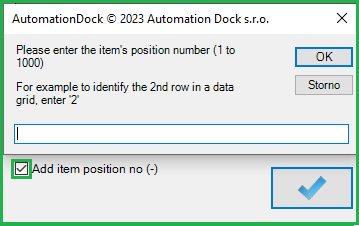
Was this article helpful?
That’s Great!
Thank you for your feedback
Sorry! We couldn't be helpful
Thank you for your feedback
Feedback sent
We appreciate your effort and will try to fix the article