User input
This action is used to provide\request feedback to\from the user, notify user by voice message or to read global variables from the database.
Automation sheet parameters:
- Option
- Set shared variables – sets the selected global variables for use in the current process
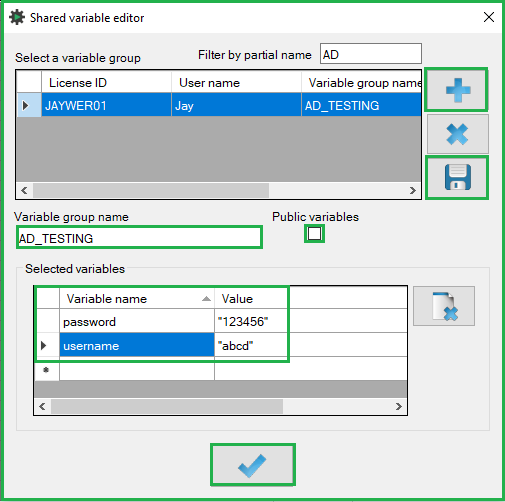 To add a new global variable set, click the Plus icon. Fill in the Variable group name (6-50 characters) and all variables for the set. Each will have the Variable name and Value (note that Text values must be set in double quotation marks).
If you want to share the variable set with other users, you can tick the Public variables box.
When all variables in the set have been defined, click the Save icon.
Once the Set shared variables (User input) action has been executed, all the variables in the set have been called and are ready to be referenced.
- Notification – voice message – speaks the selected message (Windows speech must be enabled)
- Input box – simple popup message (Automation stops until a user confirms the message)
- Dialog box – allows the user to enter a value (Automation stops until a user confirms the message)
- Set shared variables – sets the selected global variables for use in the current process
- Message – Message used by the selected option (available for Notification, Input bow, Dialog box)
- Result (output field) – displays the value (True\False with the Dialog box option) entered by the user. The value is stored in the [result] variable
Action parameters window: N/A
Was this article helpful?
That’s Great!
Thank you for your feedback
Sorry! We couldn't be helpful
Thank you for your feedback
Feedback sent
We appreciate your effort and will try to fix the article