Overview
Virtual Assistant allows an AutomationDock process to be executed automatically according to a schedule or a request from AutomationDock Cloud.
Virtual Assistant runs inside a prepared Excel workbook on the computer where the automation will be performed.
The workbook contains:
an empty sheet named Automation into which the selected process is loaded;
a Config sheet containing the environment-specific values required by the process;
any additional supporting sheets required during execution.
When the scheduled time or configured event is reached, Virtual Assistant retrieves the selected process backup from AutomationDock Cloud, loads its process rows into the empty Automation sheet, and starts the process.
How Virtual Assistant Works
The complete sequence is:
Create and test the process in AutomationDock.
Save the tested process as a backup in AutomationDock Cloud.
Prepare a separate Excel workbook for Virtual Assistant.
Keep the Automation sheet in the runtime workbook empty.
Prepare the Config sheet and any other supporting sheets required by the process.
Start Virtual Assistant in the prepared workbook.

Wait for a scheduled process or an AutomationDock Cloud request.
When the scheduled time or event is reached, Virtual Assistant downloads the selected backup.
The process rows are inserted into the empty Automation sheet.
Virtual Assistant executes the loaded process locally.
Preparing the Virtual Assistant Workbook
Create or prepare a separate Excel workbook on the computer where Virtual Assistant will run.
The workbook should contain at least the following sheets:
Automation sheet
The Automation sheet must be available and empty before Virtual Assistant begins waiting for a process.
Do not manually copy the process into this sheet. When the scheduled time or event is reached, Virtual Assistant loads all process rows from the selected cloud backup into the sheet automatically.
Config sheet
Copy the Config sheet containing the configuration values used by the original process.
These values may include:
input folder paths;
output folder paths;
file paths;
web addresses;
notification email addresses;
other environment-specific settings referenced by the process.
Example:
| Variable | Value |
|---|---|
| Input folder | C:\Users\Robot\Documents\AutomationDock\Input Folder |
| Output folder | C:\Users\Robot\Documents\AutomationDock\Output Folder |
| Web URL | www.automationdock.com |
| notification_email | john.doe@example.com |
The variable names must match the names expected by the process.
The values must be valid for the computer and account running Virtual Assistant. For example, folders used during development may not exist on the unattended robot’s computer.
Additional supporting sheets
If the original process uses other Excel sheets for input data, mappings, parameters, or calculations, prepare those sheets in the Virtual Assistant workbook as well.
A process backup should not be assumed to include the content of the Config sheet or other supporting sheets. These must be prepared separately in the runtime workbook.
Before Starting Virtual Assistant
Verify that:
the required process version has been uploaded as a backup;
the Automation sheet exists and is empty;
the Config sheet contains all variables expected by the process;
configuration values are valid for the runtime environment;
all required supporting sheets are present;
required files and folders exist;
the executing account has access to all required resources;
all required applications are installed;
the desktop session is active and unlocked;
the computer is connected to AutomationDock Cloud.
Starting Virtual Assistant
Open the prepared Excel workbook.
Verify that the Automation sheet is empty.
Review the values on the Config sheet.
Open the AutomationDock tab in the Excel ribbon.
Click Virtual Assistant.
Keep the workbook and Virtual Assistant open.
When Virtual Assistant is ready, the following status is displayed:
Waiting for the next scheduled process or AD Cloud request.
The Next refresh value indicates when Virtual Assistant will next check for a scheduled process or cloud request.
Do not manually edit the Automation sheet while Virtual Assistant is active.
Pressing ESC stops process execution and/or closes Virtual Assistant mode.
Scheduling a Process
Process Scheduler determines which process backup should be loaded and when it should be executed.
Opening Process Scheduler
Open the AutomationDock tab.
Open Settings & Options.
Select Process Scheduler.
Selecting the backup
Select the required process version in the Backup name field.
The schedule is linked to this specific backup. Changes made later to the original process are not automatically included.
Defining the active period
Enter the required Start date-time.
If the schedule should only remain active for a limited period:
Enable End date-time.
Enter the required end date and time.
The scheduler can be configured in intervals of at least five minutes.
Selecting the frequency
Choose one of the available frequency options:
| Frequency | Description |
|---|---|
| One-time | Executes the process once |
| Hourly | Executes the process at the specified hourly interval |
| Daily | Executes the process every specified number of days |
| Weekly | Executes the process on selected weekdays |
| Monthly | Executes the process monthly on the selected day |
Starting a Process After Another Process
A schedule can also be triggered by the result of another scheduled process.
| Condition | Description |
|---|---|
| On completion of | Starts after the selected process finishes |
| On success of | Starts only after successful completion |
| On failure of | Starts only after the selected process fails |
Select the required condition and the preceding scheduled process.
When the condition is met, Virtual Assistant loads the backup associated with the next schedule into the Automation sheet and starts it.
Configuring Failure Handling
Select Rerun on additional time if the process should be executed again after a failure.
Before enabling automatic retries, verify that repeating the process cannot create duplicate records, resend communications, or repeat an already completed business action.
To receive a failure notification, enter one or more email addresses. Separate multiple addresses with semicolons:
user1@example.com; user2@example.com
Saving the Schedule
After completing the configuration:
Verify the selected backup.
Check the start and optional end date.
Review the frequency or event condition.
Review the retry and notification settings.
Click Save.
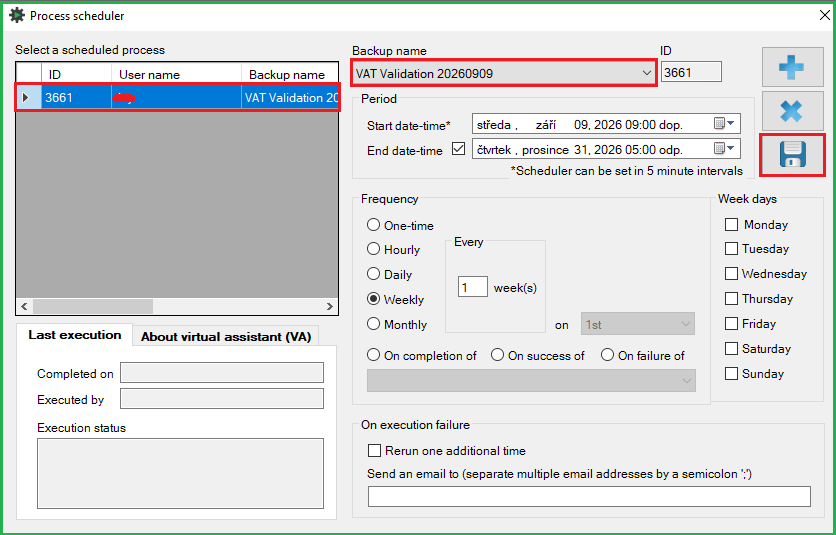 The schedule appears in the list of scheduled processes.
Virtual Assistant must remain active in the prepared workbook to receive and execute the scheduled process.
What Happens at the Scheduled Time
When the scheduled time or event is reached:
Virtual Assistant detects the schedule.
It retrieves the selected backup from AutomationDock Cloud.
It loads all process rows into the empty Automation sheet.
It executes the process using the local Config and supporting sheets.
It records the execution result.
This separation allows the same process backup to use configuration values prepared specifically for the computer or environment on which it runs.
Deploying an Updated Process Version
A schedule is linked to a specific named backup.
To deploy an updated process:
Modify and test the original process.
Create a new backup with a unique name and changelog.
Open Process Scheduler.
Replace the previous backup with the new version.
Save the schedule.
Verify the Config sheet in the Virtual Assistant workbook.
Test the updated version before unattended use.
If the updated process introduces new configuration variables or supporting sheets, add them to the Virtual Assistant workbook before changing the schedule.
Environment Readiness
Processes that interact with visible application elements require an active and unlocked Windows desktop session.
If the desktop becomes locked or unavailable, the process runs end up as failed.
Disconnecting a standard RDP session may lock or terminate the robotic desktop. The target environment and remote-access method should therefore be prepared and tested by the responsible IT team.
For complete VM, robot account, desktop session, access rights, GPO, update, and maintenance requirements, see the RPA IT Readiness Checklist.
Was this article helpful?
That’s Great!
Thank you for your feedback
Sorry! We couldn't be helpful
Thank you for your feedback
Feedback sent
We appreciate your effort and will try to fix the article