Overview
The Backup & Restore feature allows you to save a copy of an AutomationDock process to AutomationDock Cloud.
A process backup can be used to:
preserve a working version of a process;
recover a process after unwanted changes or deletion;
maintain a simple manual version history;
share a process with other authorized users;
prepare a process for remote or scheduled execution.
Each backup is stored with a unique name, changelog, owner, visibility setting, and creation date.
A process must be saved as a backup before it can be executed remotely or automatically by Virtual Assistant.
Before Creating a Backup
Before saving a process, make sure that:
the process has a unique and unified name in all rows of the Process Name column;
all required process steps are included;
the process has been tested successfully;
AutomationDock is connected to AutomationDock Cloud.
It is recommended to create a backup before making significant changes to a working process.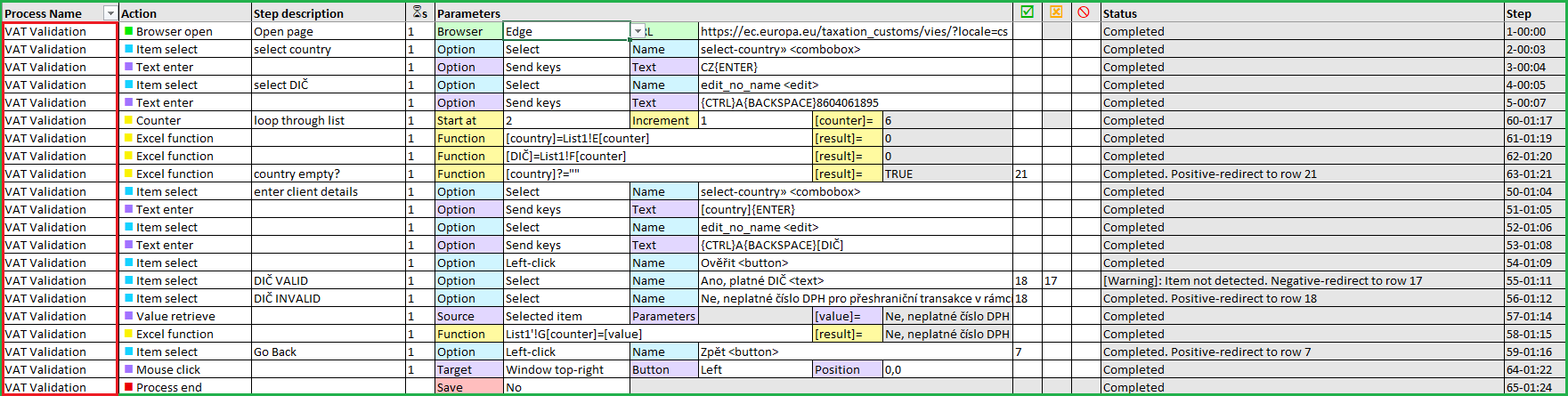
Creating a Process Backup
Open the Excel workbook containing the AutomationDock process.
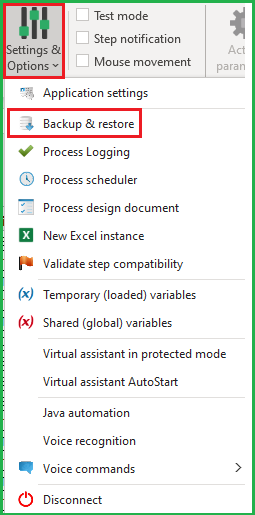
Open Settings & Options and select Backup & Restore.
Select the Backup tab.
Select the process that you want to back up.
AutomationDock displays the process name and the number of rows included in the process.
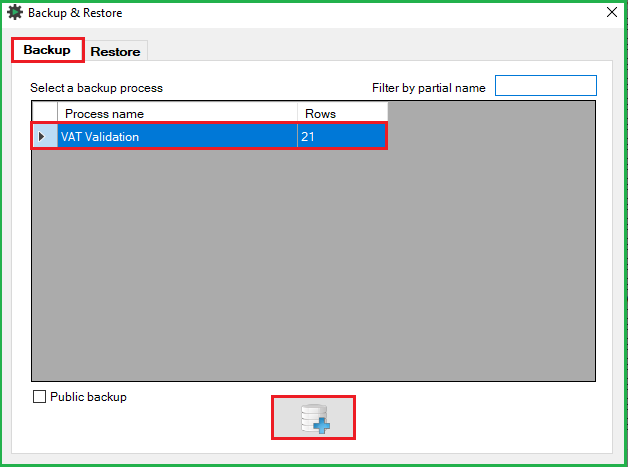
Select Public backup if the backup should be available to other authorized AutomationDock users.
Leave this option cleared to create a private backup.
Click the Create backup button.
Naming the Backup
AutomationDock asks you to enter a unique backup name.
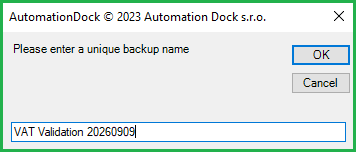
The name must be unique. If you create several backups of the same process, add a version number, time, or other identifier.
Examples:
Process Name YYYYMMDD v01Process NameYYYYMMDD 0930Process NameBefore form update
A consistent naming convention makes individual versions easier to identify when restoring or scheduling a process.
Describing the Changes
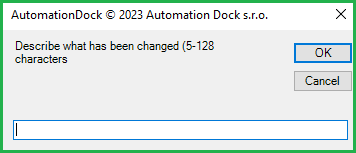 Enter a short description explaining what has changed or why the backup is being created.
The description must contain between 5 and 128 characters.
Examples:
Initial tested versionAdded validation of empty valuesUpdated selectors after application changeFixed navigation for invalid entriesWorking version before form update
Use a specific description instead of a generic entry such as Changes or New version.
Confirm the description to upload the backup to AutomationDock Cloud.
Viewing the Backup in AutomationDock Cloud
After the upload is completed, the backup appears in the Backups section of AutomationDock Cloud.
The following information is displayed: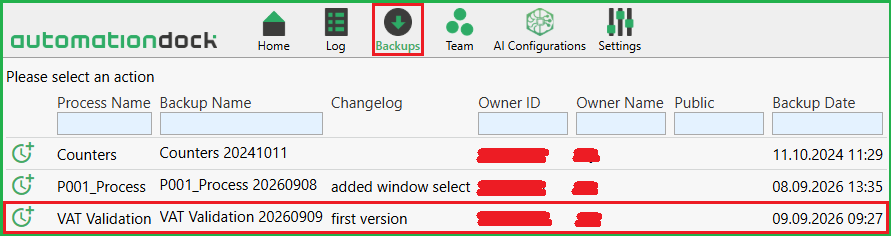
The fields above the columns can be used to filter the backup list.
Private and Public Backups
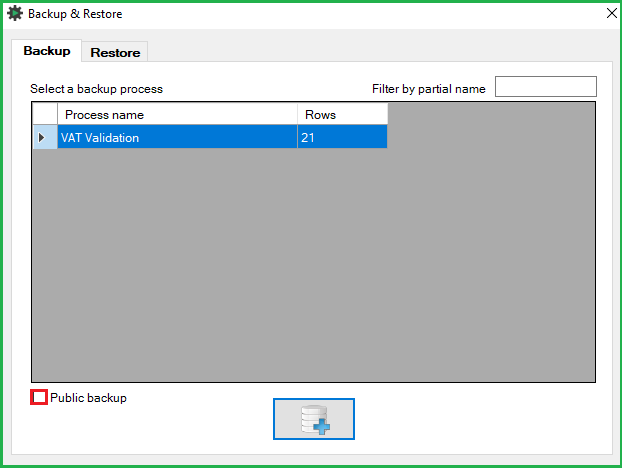
A backup without the Public indicator is private.
A backup marked as Public is available to other authorized users in the AutomationDock environment. Public backups can therefore be used to share approved process versions.
Before creating a public backup, make sure that the process is suitable for sharing and does not contain user-specific or sensitive information.
Restoring a Process
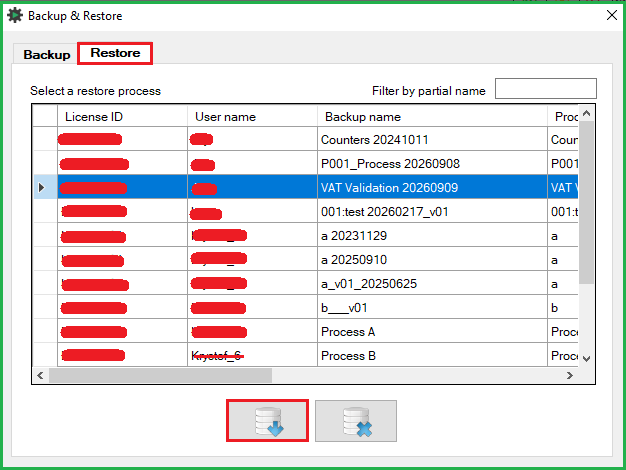
A backup can be used to recover a saved process version:
Open Backup & Restore from the AutomationDock ribbon.
Select the Restore tab.
Find and select the required backup.
Click Restore the selected backup.
Review the restored process before executing it.
Using a Backup for Process Execution
A process backup is also the version used for remote and scheduled execution.
AutomationDock Cloud does not execute the process itself. The selected backup is sent to Virtual Assistant, which runs it locally on a connected computer.
To learn how to prepare Virtual Assistant and configure process execution, continue with:
Running and Scheduling Processes with Virtual Assistant
Was this article helpful?
That’s Great!
Thank you for your feedback
Sorry! We couldn't be helpful
Thank you for your feedback
Feedback sent
We appreciate your effort and will try to fix the article