Web services
This action automatically calls a Web Service.
Automation sheet parameters:
- As the parameter fields (Connection and Parameters) combine multiple values, use the Action parameters window to populate the parameters properly
- Result (output field) – displays the value returned by the Web Service and stores it in the [result] variable
Action parameters window:
The parameters window has three tabs: HTTP request / ADOC - Get / ADOC - Upload
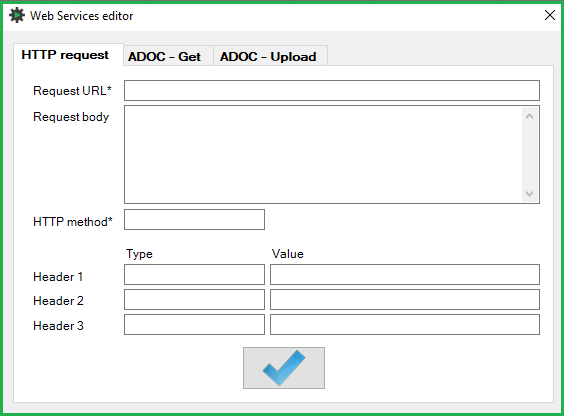 HTTP request tab
The HTTP Request action allows AutomationDock to communicate directly with a web service or API without opening a browser. It can be used to retrieve, send, update, or delete data.
Inputs:
- Request URL: The address of the API endpoint
- Request body: The data sent to the API, usually in JSON format. Mainly used with POST, PUT, and PATCH requests
- HTTP method: The request method, such as GET, POST, PUT, PATCH, or DELETE
- Header: Optional information required by the API, such as the content type, authorization token, or accepted response format
- Value: The variable in which the response is stored for use in subsequent automation steps
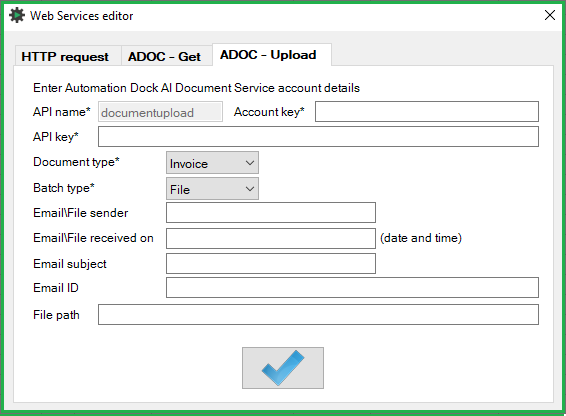 ADOC - Upload tab
The ADOC – Upload action sends a document to the Automation Dock AI Document Service (ADOC) for data extraction. For example, an invoice can be uploaded so that ADOC can identify and extract information such as the invoice number, vendor, dates, amounts, and other relevant fields.
The extracted data can subsequently be retrieved using the ADOC – Get action.
Inputs:
- Account key: Identifies the Automation Dock AI Document Service account.
- API key: Authenticates the request.
- Document Type: Specifies the type of document being uploaded (invoice; general). The selected document type determines how the document is processed and which data is extracted.
- Batch type: Specifies the source or upload method of the document (File; Email).
- Email/File sender – The sender or source of the original document.
- Email/File received on – The date and time when the document was received.
- Email subject – The subject of the email from which the document originated.
- Email ID – The identifier of the original email.
- File path – The full path to the document that will be uploaded.
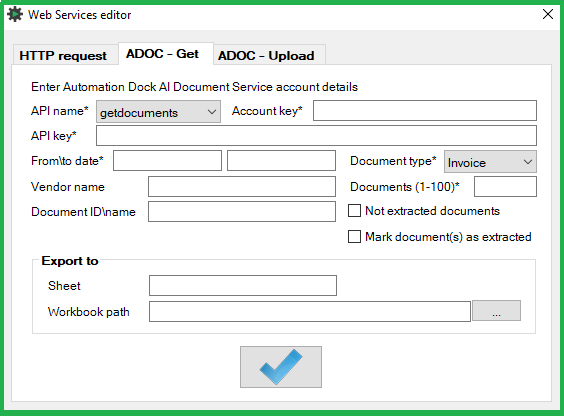
ADOC - GET tab
Retrieves data fields extracted from documents by the Automation Dock AI Document Service (ADOC). The retrieved data can be filtered by document properties and exported directly to an Excel workbook.
This action is typically used after documents have been submitted using ADOC – Upload and processed by the document extraction service.
Specifies the ADOC operation. The getfields operation retrieves the fields extracted from processed documents.
Inputs:
- API name – Specifies which ADOC operation will be performed:
- getdocuments – Retrieves processed documents and their associated document information.
- getfields – Retrieves the individual data fields extracted from processed documents.
- Account key – Identifies the Automation Dock AI Document Service account.
- API key – Authenticates the request.
- From/to date – Defines the date range from which documents should be retrieved.
- Document type– Specifies the type of document to retrieve:
- Invoice – Retrieves documents processed as invoices. The extracted data may include invoice-specific fields such as the invoice number, vendor, dates, currency, and amounts.
- General – Retrieves general documents that are not processed using the invoice-specific extraction structure.
- Vendor name – Filters the results by a specific vendor.
- Documents (1–100) – Specifies the maximum number of documents to retrieve in one request.
- Document ID/name – Filters the results using a specific document ID or document name.
- Not extracted documents – Retrieves only documents that have not yet been marked as extracted.
- Mark document(s) as extracted – Marks the retrieved documents as extracted after their data has been returned. This can prevent the same documents from being retrieved again in a subsequent request.
- Sheet: The name of the worksheet to which the retrieved data will be written.
- Workbook path – The full path to the target Excel workbook.
Was this article helpful?
That’s Great!
Thank you for your feedback
Sorry! We couldn't be helpful
Thank you for your feedback
Feedback sent
We appreciate your effort and will try to fix the article