Action - Email Process

This action interact with the current Outlook account.
NOTE: MS Outlook must be setup on the system.
Automation sheet parameters:
- Option:
- Send email – This action automatically sends an email using the current Outlook account
- Find email – Find number of emails with specified parameters
- Email action – Interact with the selected email – available after ‘Find email’ execution
- Parameters – Parameters for specific option
- Result (output field) – displays result value per selected option. The value is stored in the [result] variable
Action parameters window:
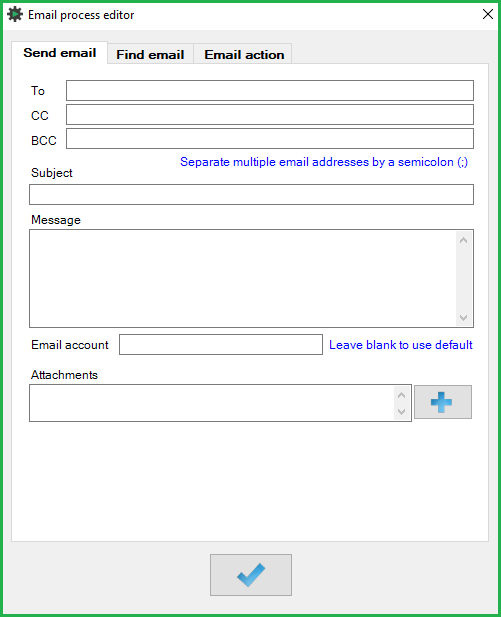
- Send email
- To: select the adressee
- CC: select the address(es) to forward the message to
- BCC: select the hidden address(es) to forward the message to
- Subject: select the subject of the message
- Message: fill in the message body
- Email account: select the Outlook account to send the message from – leave blank to select the default one
- Attachment: fill in the path to the file to be sent as attachment – you can click the Plus icon to open File Manager
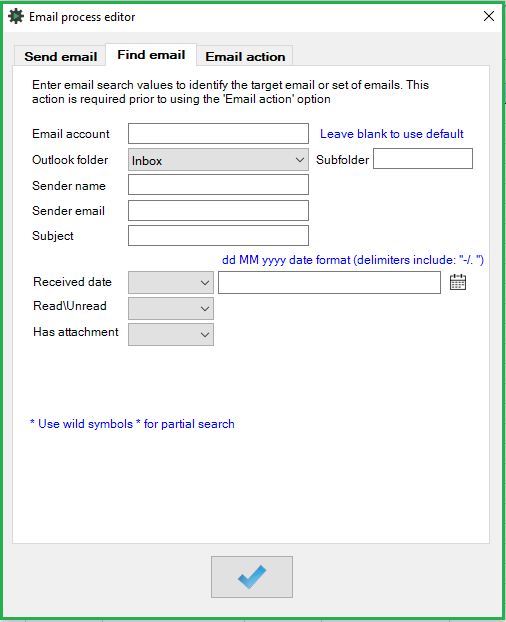
- Find email option:
NOTE: use wildcards (*) for a partial search- Email account: select an Outlook email account where to find specified email – leave blank to use the default one
- Outlook folder: select the folder to find the email (Inbox / Sent items / Deleted items / Junk email / Custom path
- Subfolder: specify the name of the subfolder of the Outlook account
- Sender name: select the name of the sender of the email
- Sender email: select the email address of the sender
- Subject: select the subject of the specified email
- Received date: select the date the email was received on – you can also specify exact date (=), sooner than (<=) or later than (>=)
- Read/Unread: Yes/No
- Has attachment: Yes/No
- To: select the adressee
- CC: select the address(es) to forward the message to
- BCC: select the hidden address(es) to forward the message to
- Subject: select the subject of the message
- Message: fill in the message body
- Email account: select the Outlook account to send the message from – leave blank to select the default one
- Attachment: fill in the path to the file to be sent as attachment – you can click the Plus icon to open File Manager
NOTE: use wildcards (*) for a partial search
- Email account: select an Outlook email account where to find specified email – leave blank to use the default one
- Outlook folder: select the folder to find the email (Inbox / Sent items / Deleted items / Junk email / Custom path
- Subfolder: specify the name of the subfolder of the Outlook account
- Sender name: select the name of the sender of the email
- Sender email: select the email address of the sender
- Subject: select the subject of the specified email
- Received date: select the date the email was received on – you can also specify exact date (=), sooner than (<=) or later than (>=)
- Read/Unread: Yes/No
- Has attachment: Yes/No
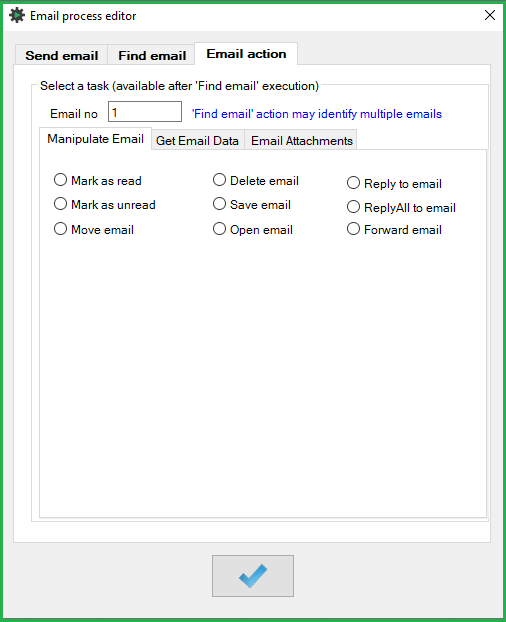
- Email action option:
- Email no.: select the number of the chosen email
- Manipulate email:
- Mark as read
- Mark as unread
- Move email
- Delete email
- Save email
- Open email
- Reply to email
- ReplyAll to email
- Forward email
- Get email data:
- Get sender name
- Get sender email
- Get subject
- Get message
- Get received date
- Get email ID
- Email attachments:
- Get attachment count
- Attachment no.: select the number of the chosen file
- Get attachment name
- Save attachment
- Manipulate email:
- Email no.: select the number of the chosen email
Was this article helpful?
That’s Great!
Thank you for your feedback
Sorry! We couldn't be helpful
Thank you for your feedback
Feedback sent
We appreciate your effort and will try to fix the article