NOTE: available from AutomationDock version 4.0.0.6
Overview
The AI Agent action allows an AutomationDock process to send a prompt to a supported Large Language Model (LLM) and use the generated response in the automation.
Before adding the action to a process, you must prepare:
an AI configuration in AutomationDock Cloud;
an API key in AutomationDock AI Key Management;
the AI Agent action in the Automation sheet.
The cloud configuration defines how AutomationDock communicates with the selected provider. AI Key Management supplies the required authentication key, while the AI Agent action contains the prompt used during process execution.
Prerequisites
Before starting, make sure that:
you have access to AutomationDock Cloud;
you have an account with a supported AI provider;
you know the exact model name required by the provider;
you have a valid endpoint, if required;
you have generated an API key for the selected provider;
the computer running AutomationDock can access the provider’s endpoint.
Keep API keys confidential. Do not enter an API key directly into the Automation sheet, process parameters, prompts, or documentation screenshots.
Step 1: Create an AI Configuration in AutomationDock Cloud
Sign in to AutomationDock Cloud.
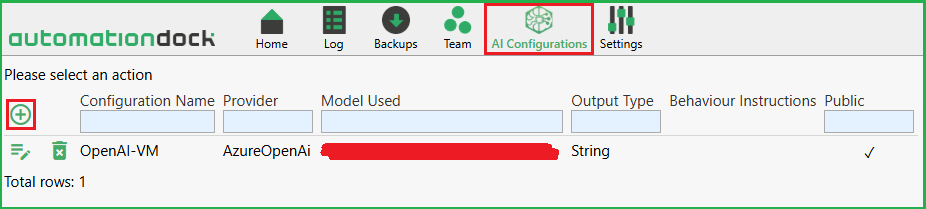
Open the AI Configurations section.
Click the Plus icon to create a new configuration.
Complete the configuration fields.
 Configuration name
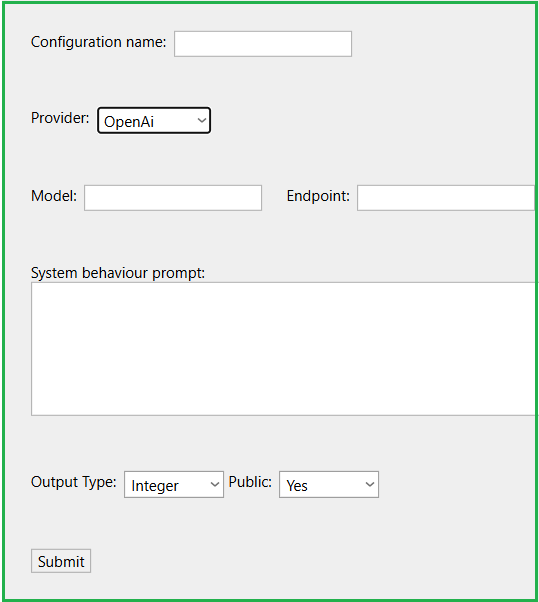 Enter a clear name for the connection.
You will use this name later when registering the API key and configuring the AI Agent action.
Use a name that identifies the provider, purpose, or environment.
Examples:
OpenAI Document ClassificationAzure OpenAI ProductionAnthropic Development
Provider
Select the LLM provider that will process the request.
Available providers may include:
OpenAI
Anthropic
Azure OpenAI
Cohere
Google
Groq
DeepSeek
Mistral
xAI
Perplexity
Voyage
DeepInfra
OpenRouter
Moonshot AI
Z.ai
Blablador
Alibaba
Requesty
Upstage
MiniMax
The available list may depend on the installed AutomationDock version.
Model
Enter the exact model identifier expected by the selected provider.
The model name must match the provider’s technical model identifier. A display name used on the provider’s website may not be accepted.
Refer to the provider’s current API documentation for supported model identifiers.
Endpoint
Enter the API endpoint used for the connection.
The required endpoint format depends on the selected provider. Some providers use a standard endpoint, while services such as Azure OpenAI may require an endpoint specific to the organization, resource, deployment, or region.
Make sure that the endpoint:
belongs to the selected provider;
uses the correct API path;
is accessible from the computer running AutomationDock.
System behaviour prompt
Use this field to define the general role and behaviour of the AI model.
For example:
You are an assistant that classifies incoming customer emails.
The system behaviour prompt can also be defined in the AI Agent action. Leave the cloud field empty if the required instructions will be supplied by the individual process.
A cloud-level prompt is useful when the same behaviour should be shared by several processes. An action-level prompt is more suitable when instructions differ between individual process steps.
Output Type
Select the format in which the AI response should be returned to AutomationDock:
| Output type | Recommended use |
|---|---|
| String | Free-form text, summaries, explanations, or generated messages |
| Integer | A single numeric result |
| JSON | Structured output containing several named values |
Select an output type that matches both the prompt and the way the following process steps will use the response.
If JSON is selected, instruct the model to return valid JSON with a clearly defined structure.
Example:
{ "category": "Invoice", "confidence": 92 }
Public
Specify whether the AI configuration should be available to other users in the same AutomationDock domain:
No – the configuration remains private;
Yes – the configuration can be used by other authorized domain users.
Making a configuration public does not mean that the API key should be shared in plain text. Each required execution environment must still be configured securely through AI Key Management.
Save the AI configuration.
Step 2: Register the API Key in AutomationDock

After creating the cloud configuration, register the provider’s API key in AutomationDock.
Open the AutomationDock tab in Excel.
Select AI Key Management.
Click Add New Key.
Complete the following fields.
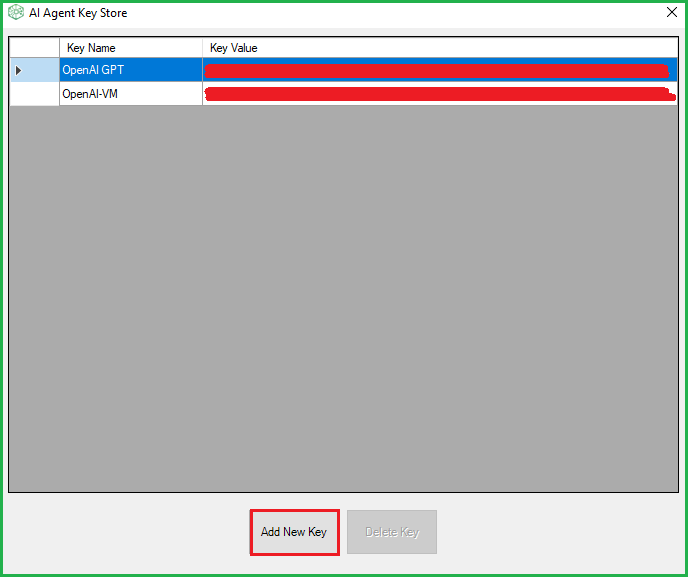 AI Key Name
Enter the name of the AI configuration created in AutomationDock Cloud.
The name must match the cloud configuration so that AutomationDock can associate the configuration with the correct credential.
AI Key Value
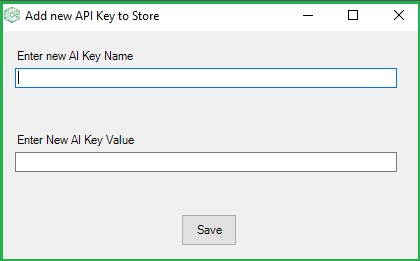
Enter the API key generated by the selected AI provider.
API keys are normally available in the account or developer portal of the provider.
Save the key.
Never include the API key in the process steps, Config sheet, prompts, screenshots, logs, or shared documentation.
Step 3: Add the AI Agent Action

After the cloud configuration and API key have been prepared, add the AI Agent action to the process.
Open the required AutomationDock process.
Add a new row to the Automation sheet.
Select AI Agent as the action.
Open the action parameters.
Select the prepared AI connection.
Verify the model.
Enter the prompt that should be processed.
The prompt can contain:
direct instructions;
values retrieved earlier in the process;
text from files, documents, emails, or applications;
references to AutomationDock variables.
Write the prompt so that it clearly describes:
the task;
the input data;
the expected output;
any restrictions or validation rules.
Example prompt
Classify the following email as Invoice, Statement, or Other. Return only the category name: <EmailText>
For structured output:
Classify the email and return valid JSON containing category, confidence, and rationale. Do not include any text outside the JSON object.
Step 4: Test the AI Agent Action
Before using the action in a complete process:
provide a simple and predictable test input;
execute the AI Agent step;
review the returned response;
confirm that the result matches the selected output type;
verify that following process steps can use the result.
For a JSON response, check that:
the response is valid JSON;
all required properties are present;
property names remain consistent;
the process handles an incomplete or invalid response.
For an Integer response, verify that the provider returns only a numeric value.
Troubleshooting
Authentication error
Check that:
the API key is valid and active;
the correct key was entered in AI Key Management;
the AI Key Name matches the cloud configuration;
the provider account has access to the selected model.
Model not found
Verify the exact technical model identifier in the provider’s current API documentation.
Also check that the model is available for the account, subscription, region, or Azure deployment being used.
Endpoint error
Check the endpoint address and confirm that it corresponds to the selected provider.
For Azure OpenAI, verify the resource endpoint, deployment, API version, and regional configuration.
Unexpected response format
Make the required output format explicit in the prompt.
If JSON is expected:
describe the required properties;
provide a short example;
request valid JSON only;
instruct the model not to add explanations or Markdown formatting.
Empty or incomplete response
Check that:
the input value is not empty;
the prompt contains all required context;
the selected model supports the request;
the request does not exceed the provider’s input or output limits;
the provider connection is available.
Recommended Practices
Use descriptive configuration names.
Keep API keys in AI Key Management only.
Use separate configurations or keys for development and production where appropriate.
Define the expected response format explicitly.
Prefer JSON when several values must be passed to subsequent process steps.
Validate AI-generated output before using it in a business action.
Handle connection errors, invalid responses, and missing values.
Do not use unvalidated AI output to perform irreversible or sensitive operations.
Review the provider’s usage limits and associated costs before production use.
Final Configuration Check
Before using the AI Agent action in production, verify that:
the AI configuration has been saved in AutomationDock Cloud;
the correct provider is selected;
the model identifier is valid;
the endpoint is correct;
the API key has been registered in AI Key Management;
the AI Key Name matches the cloud configuration;
the action uses the intended connection and model;
the prompt defines the expected result;
the returned value matches the selected output type;
error and validation handling have been tested.
Was this article helpful?
That’s Great!
Thank you for your feedback
Sorry! We couldn't be helpful
Thank you for your feedback
Feedback sent
We appreciate your effort and will try to fix the article